Wednesday, October 26, 2022

Masks 01-05

As I'm needing a mask for writing tutorials

I soon realize I haven't made any in a long time.

Hence the sharing of some New Masks.

I hope you find a use for them

They are in PNG and JPG format

You may click each individually and save 

or Download All using the Download Button

Masks 01 - 05


BeWare Monsters

PTU Tube by Maryline Cazenave 103-3 of CDO 
FTU tagger scrapkit by Miggins:
SYHO Blog Train October HERE
 Thank you Miggins
**Please visit her blog for more treats**
Mizteeque's Miz_Mask_374 HERE
Grab the PNG ~ 4th down
My PNG Mask:  WWMask 01a & 02a HERE
Wordart by Dee's Sign Depot HERE
Plugin: Filters Unlimited 2.0 ~ PhotoAging
Font of choice
Drop shadow used -4, 4, 55, 10, black
Add D/S as you go with exceptions as stated.
Remember when resizing elements to sharpen.


*~ Let's get started ~*

1. We are going to spend a bit of time making a tagback for this tut:
Open new Image 725 x 700 px transparent
Flood fill white
Open Miz_Mask 374 R/S 85% C/P
Move upward & to left Rename ~ Mask
Select all float, defloat, add new RL, 
Open Paper 5, C/Paste into the selection, d/s
Move downward & to right, Rename ~ Mask 03
Select Mask layer again, select all, float, defloat, add new RL
Open paper 2, C/Paste into the selection. d/s
Rename Mask 02
Open WWMask 01a C/P Rename Mask 01
Move to upper left

Note:  Arrange layers in this order starting from bottom:
white bg ~ close for now
Mask
Mask 01
Mask 02
Mask 03
Merge the above layers visible
Image ~ Decrease colour depth ~ 2 Colours ~ grey values, ordered dither ~ OK
Copy then UNDO 
Paste as top most layer
Using magic wand, click on outer white area, delete, d/s
Rename this Dither
Move it above the Mask layer on layer palette
Close Mask 02 layer
Open WWMask 02a PNG C/P move upper left
Select all, float, defloat, add new RL
Open Paper 5, C/Paste into the selection d/s
close original mask beneath it.
Using lighten/darken tool, softly lighten with brush sz 100, 75 hardess & opacity
the very top edge of Mask 04 layer. 

Your tagback should look something like this:

2. Now that I confused you, we can start making the tag. :+)
elem 28 ~ 65%
elem 33 ~ 65% D/S -15, 10, 50, 10 Black
elem 5 ~ 50%
elem 24 ~ 50% duplicate 3 or 4 times, arrange as brick wall, merge them together
then colourize using Filters Unlimited 2 ~ PhotoAging ~ 103,131,145 
elem 38 ~ 50%
elem 3 ~ 40%, dup & mirror
elem 16 ~ 65%
elem 10 ~ 25% D/S  -10, 10, 55, 5 black
elem 27 ~ 50%
elem 22 ~ 18%
elem 29 ` 15%
elem 1 ~ 70%
Select all, float, defloat, add new RL, open paper 21, C/Paste into the selection, d/s
Change blend mode to Overlay
Add tube of choice R/S, see reference tag
elem 26 ~ 50%
elem 23 ~ 20%
elem 11 ~ 20%
Wordart 50 % Add a 3 px border on new layer in colour # f9efe7, merge together WA & border
Change blend mode to soft light, duplicate
Add any other elements of choice


3.  If you wish to resize tag, do so now.
Add copyright, url & license
Close white bg, crop merged opaque
save as a PNG

Thank you for trying this tut!
xo

Sunday, October 23, 2022

Steampunk


Artist Tube by Very Many Steampunk 24 
PTU Scrap kit Manipulated by Magik
Thank you ♥ Magik ♥
Steampunkelement-003
 by IE Zombie
**To locate above element,
find Steampunk (36) ~ older entries, go back 14 pages**
Unfortunately the 'search' doesn't locate this element bg.
Plugin: L en K Land site of Wonders ~ Zitah
Font Antique Android

Let's go...

1. Open new transparent image 725 x 700 px
Flood Fill white
Open Steampunkelement-003 by IE Zombie
C/P  Resize 97%
C/P elem 64 D/S 1/1/55/3 blur colour black
Open Frame 2 C/P
Open elem 36 R/S 150% Sharpen
C/P
using magic wand, click inside of frame elem 2, expand by 5 px
select elem 36 layer, press delete
Merge down.
Add new RL, move below frame 2 and elem 36
Open paper 12, C/Paste into the selection. d/s
Duplicate ~ blend mode Multiply
Open close up of tube R/S 
C/P, invert selection
delete, d/s
Duplicate tube layer
on original, change hue/saturation to 0/0
on copy layer ~ duplicate ~ blend mode screem. 42% opacity
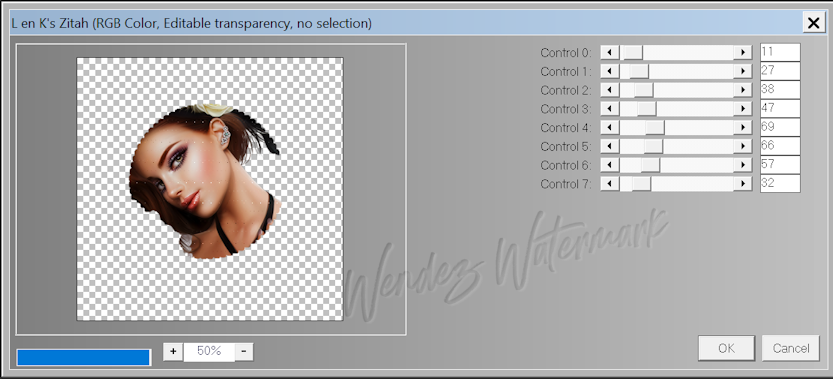
Apply L en K land site of wonders ~ Zitah
settings:

2. Add main tube of choice, R/S 43% C/P as uppermost layer
Note:  I recoloured skirt and hair.
Sharpen using unsharp mask ~ 1/50/1
luminance only checked
D/S

3.  Decorate your tag with elements of choice, D/S as you go:
2 ~ 30%
61 ~ 75%
9~ 75%
12 ~ 75%
30 ~ 50%, duplicate, arrange
31 ~ 25%
65 ~ 75%
56 ~ 25%
28 ~ 50%, duplicate R/S 75%
62 ~ 45%
21 ~ 25%
54 ~ 50% duplicate, merge down, sharpen twice D/S
13 ~ 75%, duplicate, mirror

4.  Resize image if you wish
Add copyright, URL, watermark & name
Delete white bg layer, merge visible, crop ~ merged opaque
and save as a PNG.

I hope you enjoyed this tutorial.
xo

Thursday, October 20, 2022

Witches Brew

In this PSP tutorial, I am using the amazing artwork of Gaetano Di Falco
I do not believe he sells his art any longer.
A PTU Scrap kit by Manipulated by Magic
A brilliant scrap kit with unique elements.
Thank you ♥ Magik ♥
Allison's Template_12_Halloween HERE
Fecnikek Halloween Mask HERE I chose the second one.
Plugin: Filters Unlimited 2 ~ Video ~ Interlace
Drop shadow 1/3/75/5 black, D/S as you go
Note: Remember to sharpen elements if resized or distorted
Font used ~ Blood Omen

~ * Let's go! * ~

1. Open template 12, Shift D, close original.
then flood fill the entire bg layer white
Delete all the following layers of template:
- info, layers 1, 2, 5, 6, 11, 12, 24, 25, 27 to 31 incl.

Beginning from bottom
Add new raster layer above white bg
select all, open paper 20 C/Paste into the selection, d/s

Open Fecnikek Mask II, layers ~ merge all flatten, 
Image ~ Negative image. Minimize.

Apply mask to paper layer, merge group. 

2.  Select layer 3, all, float, defloat, new RL
Open paper 1, C/Paste into the selection, d/s
Layer 4, change colour of dots to white (brightness/contrast 255/0) Light D/S
Do same for layer 7 as with layer 3.
Keep the selection and resize your close-up image 
to fit inside the selection. Blend mode Luminance legacy.
Change Layer 8 to white, light D/S

Layer 9, select all, float, defloat, add new RL
open  paper 2, C/paste into the selection, sharpen. d/s
Change layer 10 to white, light D/S

Layer 13, select all, float, defloat
open paper 3, C/Paste into the selection. d/s
duplicate ~ change blend mode to multiply
Leave layer 14 black but add light D/S

Layer 15 do same as layer 13.
Layer 16 add light D/S

Layer 17, select all, float, defloat, add new RL
Open paper 6, C/Paste into the selection
Do not deselect, invert
open tube close up, R/S 75%, C/P arrange face in circle
delete, d/s.
duplicate this tube twice, original layer normal
duplicate copy change blend mode to soft light
change top duplicate copy to screen
Layer 18 change colour to white, light D/S

Layer 19, do same to this circle as with layer 17.
Change layer 20 to white, light D/S

Layer 21, select all, float, defloat, add new RL
Open paper 2, C/Paste into the selection, d/s
Add noise ~ random, 75, monochrome checked

Layer 22, select all, float, defloat, add new RL
Open paper 1, C/Paste into the selection, sharpen, d/s

Layer 23, change colour to white, drop opacity to 50
Using plugin Filters Unlimited 2 ~ Video ~ Interlace
setting: odd scanlines, contrast 164, apply
Do same with Layer 26.

3.   C/P main close up of tube
duplicate ~ soft light
D/S original tube layer

Now decorate your tag to make it original to you
adding elements above and below tube layers.
Elem 59 ~R/S 65% C/P move beneath layer 26
select all, float, defloat layer 26, invert
then select elem 59 & delete excess. d/s
elem 37
elem 22 ~ 50%
elem 86 ~ 45%, dup ~ mirror
elem 47 ~70%
elem 58 ~ 50%
elem 79 ~ 50%, dup ~ mirror
elem 18 ~ 70%
elem 84 ~ 20%
elem 93 ~ 45%
elem 83 ~ 25%
elem 5 ~ 50%
elem 51 ~ 25%
elem 78 ~ 50%, dup ~ mirror
elem 92 ~ 35% dup ~ mirror
Add any other elements of choice

4.  If you wish to resize your image, do so now.
 Add copyright, url, license & Name

If you wish to do the same Cutout Effect on Name as reference tag,
using font Blood Omen sz 30-36, sharp
foreground closed, black fill colour
type out name then rotate 20 deg to right, arrange, convert to raster
use effects cutout as below:
Add D/S 1/1/90/1 colour #ffffff
Change blend mode to 'hard light'

Adjust mask using pick tool to stretch out mask width & lengthwise.

Delete white bg layer, merge visible, crop ~ merged opaque
and save as a PNG.

I hope you enjoyed this tutorial.
xo

Wednesday, October 19, 2022

Witch With An Attitude


In this PSP tutorial, I am using the amazing artwork of Zlata_M
available for purchase at her store. The tube is called Pumpkin
A PTU Scrap kit by Kathy's PSP Designs
called Haunting available HERE
Please check out her entire blog for inspiration
This kit comes with a Goldwasser tube!! How cool is that?
A beautiful tube & kit all in one. I definitely recommend this kit.
Thank you ♥ Kathy ♥
Millie's PSP Madness Template 862
Halftone Masked layer by me supplied HERE
Drop shadow 1/3/75/5 black, D/S as you go
Note: Remember to sharpen elements if resized or distorted
Font used is Olliffia Calligraphy


~ * Let's begin! * ~


1. Open template 862, Shift D, close original.
Select white bg layer, increase canvas size to 700 x 700 px
then flood fill the entire bg layer white.
Delete all the following layers of template:
- credits, layer 7, layer 8, layer 9

Select layer 1, float, defloat selection
add a new raster layer,  paste paper 4 into the selection. d/s
Select layer 2, float, defloat selection, add raster layer, paste paper 1 into the selection, d/s
Select layer 3, select all, float, defloat, C/P paper 7 as a New Layer
Invert selection ~ delete, d/s.
Select layer 4, float, defloast, add new raster layer, paste paper 4 into the selection, d/s.
Select layer 5, float, defloat, paste paper 1 into the selection
Add a new raster layer,
expand the selection by 5 px
move this layer below paper 7 & flood fill with a gold metal gradient.
I used one that came with PSP called metal brass. d/s


2.  Open main tube or if using same tube choose the close up, R/S 50%, C/P below all the Word Art layers
Duplicate tube
change blend mode to soft light, gaussian blur 5,  duplicate this tube layer
change blend mode to screen

To decorate your tag, place elements above & below your tube layers
Please see reference tag for placement:
elem 19 ~ 85%
elem 1 - 85%, duplicate, move left & slightly lower
elem 53 ~ 25%
elem 92 ~ 95%
elem 53 ~ 25% place to left of tube
Using magic wand click inside circular frame, expand selection by 5
add new raster layer, move it below the frame, flood fill with colour black. 
Do not deselect, open same tube once more, R/S 90%,
C/P above black layer, arrange, invert selection, delete, d/s.
Use the same blend modes as we did for the Main tube above
(ie, duplicate, soft light, gaussian blur, duplicate, screen)
Merge down the 3 tube layers to the circular frame & black fill.
Duplicate this tiny face frame and mirror. Arrange.

elem 31 ~ 30%
elem 5 ~ 30%
elem 64 ~ 20%
elem 46 ~ 20%
elem 48 ~30%
elem 22~ 50%
elem 49 ~ 50%, flip vertical
I used pick tool to deform top portion of grass
by pressing Control on keyboard, drag top left node inwards
and middle top edge downwards. 
elem 84 ~ 40%
elem 52~ 20%
elem 61 ~ 50%, dup & R/S 75%
elem 58 ~ 40%
elem 22 ~ 50%
elem 32 ~ 25%
elem 52 ~ 20%
elem 64 ~ 20%, rotate left 17 deg, duplicate, mirror

3.  Select 'Witch' word art
change colour to white, brightness/contrast 255/0
do same for all three word layers
Select 'Witch' Word art, select all float, defloat, contract selection 2 px
add a new raster layer
Open paper 7, resize it 50%, Copy
Paste the paper into the selection on the 'Witch' Word art. d/s
duplicate, apply an inner bevel 
I used this setting:
W10, S25, D7, A0, Sh10, Colour white, Angle 315, Int 35, Elev 60
Change blend mode to multiply.
Add Noise effect to the white layer.
 Merge these 3 layers, then D/S

Do this same method to the 'Attitude' Word art.

Select 'with an' wordart, apply inner bevel, D/S

Arrange the word art layers to your liking.

4. Open masked halftone layer provided
C/P above white bg layer.
If you wish to resize tag, do so now.


5.  Add copyright, url, license & Name
Delete white bg layer, merge visible, crop ~ merged opaque
and save as a PNG.


Thank you for trying this tutorial.
xo

I also made an animated version with a Free animation
by SophisticatSimone called Magic Genie HERE
I recoloured the layers to match the tube's globe


Tuesday, October 18, 2022

Tag Show Off

 I'm always proud to show off

tags made for me using my tutorials

This is sweet creation by

tamie


Black 01 Cluster Frame

 To Compliment the CT tags made previously

I have for your personal use two Cluster Frames created from

the kit Black 01

Manipulated by Magik

available for Purchase HERE

Simply right click to Save


CT Tags

I am honoured to be a Guest CT tagger for 
Both of the following tags were created
using her fantastic scrap kit called
Black No. 01

This magnificent kit can be purchased HERE
This kit is packed with 
17 papers, 125 unique elements
and 8 frames. A treasure to tag with.
The first tag features the brilliant
artwork of Barbara Jensen

The wordart for this tag is made by myself
and can be downloaded by scrolling further.
Enjoy!


This second tag features the Amazing artwork of Nocturne
available for purchase at Pics For Design


Wordart courtesy of myself
Please click on it to enlarge & save 


Monday, October 17, 2022

Tag Show Off

 Just wanted to share some tags made

using my tutorials

I love seeing your results

and I apologize for not 

displaying more of what is shared with me

Tag by Bhamman


by Rachey

 by Bhamman


Witchy Woman


 In this PSP tutorial I'm using the amazing artwork of Lorri Kajenna
 purchased at PicsForDesign
A FTU scrapkit by Addictive Pleasures
called I Love Halloween ~ third kit down
♥ Thank you tamie ♥
Please check out her entire blog & leave some love.
Fecnikek's Halloween Mask HERE
I used 4hwmask2.fecnikek
Fire Animation by Scrappy Bit of Fun
 Grab the Simone Ani 301 HERE
Font Coraline's Cat
Drop Shadow of choice as you go
Be sure to sharpen elements if resizing


*~ Let's get started ~*

1. Open new Image 725 x 700 px transparent
Flood fill white
Add layer ~ select all
Open Paper 3, C/Paste into the selection d/s
Open fecnikek mask 2, merge All Flatten
Go to Image ~ Negative Image. Minimize
Back to working image, apply the mask to the paper. Merge Group.
R/S 98% 

2.  Open leaves 3, C/P, duplicate mirror, arrange
tree ~ mirror
window ~ 85% duplicate ~ blend mode multiply, merge down
Draw a selection inside of window,
add a new layer, flood fill black, d/s
Keep selection, open tube resize 85%
Mirror tube, rotate 12 deg to left, sharpen C/P & arrange
invert selection and press delete. d/s
Duplicate tube ~ Gaussian blur of 5, Hard Light blend mode
D/S Window

3.  Add main tube, R/S 35%, mirror C/P
duplicate ~ gaussian blur 5, blend mode soft light. opacity 42
Ivy 3 C/P
using deform/pick tool, press Control on keyboard
grab top left node and drag inwards to distort the ivy frame.
Sharpen. Sharpen more.  Open Paper 5, mirror.
C/P beneath ivy frame. Draw a point to point selection around ivy, invert
Select paper layer & delete. d/s
Add web ~ 50% on top of paper
Decorate your tag to your liking
barrel ~ 75%
book ~ 25%
couldron2 ~ 75%
mouse ~ 45%
ivy ~ 50%
pumpkin 2 ~ 75%, duplicate ~ mirror, resize 75%
spider 2 ~ 45%


4.  Resize working image if desired, all layers checked
Add copyright, url, license & Name
Close white bg layer. Merge visible Save as a PNG


To Animate:

Open Simone Fire Animation 301 Mng in Animation Shop
Rezize Smart size 50%
Back to PSP, On working image copy 'merged visible'
and Paste in A/S as a New Animation

The fire animation has 21 frames therefore
duplicate your main image to equal 21 frames. Edit select All & edit Propogate Paste
On Fire animation, Edit select All & Copy
Drag first frame of fire animation
on to the first frame of working image
Place the animation on top of  couldron, slightly to right
Return to Fire animation, select UNDO, animation ~Mirror ~ select All
Copy first frame and place on couldron in middle
Return to Fire ani, select UNDO, Animation mirror
select all, copy first frame 
and paste left side of couldron
If placement error is made, simply UNDO your animation & try again.
Essentially I copied 3 fire animations to cover bottom of couldron
Check your image animation by selecting VIEW animation.
If happy, use optimization Wizard
Customize settings:  255 colors, opt median cut, error diffusion
Partial transparency set at 85%, select Yes match with this color 'white'
Ok, next, next, finish. 

Voila!


Thursday, October 13, 2022

A Wee Bit Wicked


In this PSP tutorial I am using the brilliant artwork of Goldwasser
 purchased at Pics for Design
Stunning PTU scrapkit by Kathy's PSP Design
This kit includes the Goldwasser tube, a sweet bonus!
Thank you Kathy ♥ 
Please check out her entire blog HERE
Halloween Template by Dee's Dangerously Delicious Designz
called DM Halloween Collab Template 2 HERE
Drop shadow used 2, 2, 55, 5, colour black
Add D/S as you go
Remember when resizing elements to use Unsharp Mask
setting: 1, 55, 1, luminance checked
Plugins EyeCandy 4.0 ~ Gradient Glow
Mask supplied in kit
Font wicked queen


*~ Let's go!  ~*

1. Open template 2, Shift D, close original.
Select top layer, resize canvas size to 800 x 725 px
We will resize entire image later 
Delete all the following layers of template:
- info
- font info
- black stars
- wicked gradient
- both purple stars
- all the dot/dash lines/circles
- both purple strips
- both blue rectangles
- top & bottom glitter squares
- both purple squares
- large blue square

2.  Start at bottom - top orange rectangle
select all, float, defloat, add new raster layer 
Open Paper 5 C/Paste into the selection, d/s
Sharpen once
Do same for other orange rectangle except Flip paper vertically
then C/Paste into the selection. Sharpen. d/s

On left, merge together the three rectangles - 2 orange, 1 purple
change colour of these 3 rectangles to black using
Brightness/Contrast:  -255, 0

On the right, merge the two green squares together by merging down
Select all, float, defloat, invert selection
Open paper 1, C/P as new layer
press delete, d/s, sharpen


3. Select orange oval layer - select all, float, defloat
Add a new raster layer
Open Paper 7, C/Paste into the selection
do not deselect
If you have the full size tube (not supplied) but purchased
resize 80%, C/P above red paper layer
Using magic wand, click on the outside area red paper layer
arrange face of tube within the selection
press delete, d/s.
Change blend mode of face to multiply, opacity 89, duplicate
To give this copy layer a painted finish,
go to Effects ~ Art Media Effects ~ Brush Strokes
setting:  S20, BB160, W5, O50, L3, D25, angle 102 Colour #505050
Ok
Note: Adding this effect will create undesired drop shadows on 
the outer edges of your canvas. Simply draw out
a larger rectangular selection on this painted tube layer
outside of the circumference of tube
invert the selection & delete, d/s
Those shadows should disappear.

Select green half oval layer, select all, float, defloat
Add a new Raster Layer
Open Paper 6, C/Paste into the selection, d/s

Change foreground colour to #aa182a
Select wicked white layer on template
change colour using colour changer tool by flood filling the white glitter layer
Adjust sharpen twice

Using move tool, move the 'A Wee Bit' wordart
to the left & ontop of word WICKED
Change colour to white using Brightness/Contrast 255/0
resize 75%
Using Eye Candy Gradient glow, add a black gradient glow to the 'A Wee Bit' layer


4. Open tube supplied, resize 80% C/P
below all the Word Art layers but above the black half oval
duplicate, change blend mode to overlay, decrease opacity to 73
On original tube layer, apply the Unsharp Mask ~ setting in intro
Apply D/S to this layer, not the overlay layer

Now you can customize your tag, see reference tag for placement
 kdg7 ~ 25%
elem 34 ~ 50%
elem 20 ~ 30%
57 ~ 50%, duplicate, mirror & arrange
89 ~ 30%
79 ~ 30% & 75%
60~ 50%
91 ~ 50%
64 ~ 50% & 75%
53 ~ 25%
46 ~ 75%, duplicate, mirror & arrange
41 ~ 75% sharpen twice
58 ~ 50% & 75%
36 ~ 13%
36 ~ 17%
61 ~ 25%
59 ~ 30%
81 ~ 40%
place above doll to appear crow is carrying doll above cauldron
sharpen crow twice
37 ~ 50%
2 ~ 75% duplicate, mirror & arrange
15 ~ 30%
add any other elements of choice

*some elements were sharpened casually using the Sharpen Brush tool
sz 50, step 10, density & thickness 100, rotation 0, opacity 25
ie. spider web, ghost monk eyes, snake

Note:  After elem 41 was added, the black paper layer beneath it 
extended too high. Simply draw a rectangular selection
on the upper portion of black layer & delete, d/s.


5.  Select white bg layer
Add new raster layer, open paper 1, C/Paste into the selection d/s
Apply mask supplied in kit
Open elem 69 C/P above masked paper
Add elem 4 ~ approx 85%, move to left
duplicate, move to right

If you wish to resize tag, close white bg, crop merged opaque
then resize entire image to 700 px on longest side

Be sure to check for undesired, outlying dropshadows & erase/delete
Also dropshadow paper layers


7.  Add copyright, url, license & Name

Thank you for trying this tut.

Boo!