Thursday, December 30, 2021

FTU Happy New Years Kit


This is a revamp of an older New Years kit I created.

I added some newer elements and hope you enjoy!

  Please do not share the links

but rather direct others to come to my blog to download.  Thank you!


I have to share this exquisite tag made by sandy


using the above New Years kit.

I think it's simply FABULOUS!!!

Thank you sandy for your creativity!


Wednesday, December 8, 2021

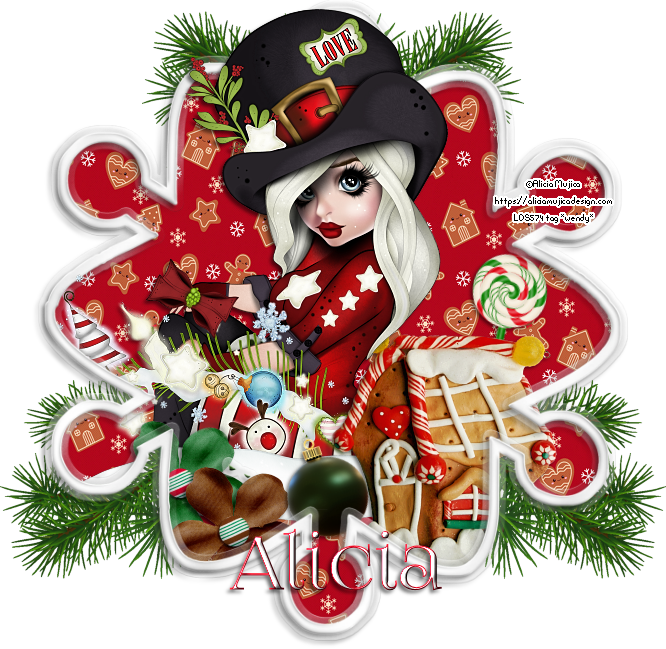
Snowflake Xmas

 In this quickie PSP tutorial I used the artwork of Alicia Mujica Designs
a tube included in the Black Friday Pack 2016
You must have a proper license for use of her images.
Freebie by Raspberry Roads called Gingerbread Christmas
available HERE. You do need to login to d/l this freebie.
Font for Name: Foglighten No.07

To sharpen elements, use Adjust sharpness ~ unsharp mask
setting: Radius 1, strength 55, clipping 1,
luminance only checked.

A drop shadow of choice


*~ Let's get started ~*


1.  Open element 15, r/s to 650 x 650 px, all layers checked.
Image Canvas ~ 700 x 700 px centered
Add a new raster layer, send to bottom of layers palette
Flood fill white.

Select snowflake layer, using magic wand: tolerance 10, feather 0,
 click inside center of snowflake frame
selection ~ modify expand by 12 px.
Add a new raster layer
move this new layer below snowflake
Open paper 1, copy & paste 'into' the selection. Deselect
Sharpen paper once.

2.  Open main tube. If using same, resize 25%
C/P above paper layer.
Should any of the tube layer extend beyond snowflake,
select paper layer, click with magic wand 'outside' of paper area
Select tube layer, erase any part of tube that extends beyond
except her hat & greenery.
Duplicate tube. Close duplicate copy for now.
Do not deselect.

3.  Add elements of choice, all placed below snowflake frame.
I added elem 24 ~ 35%
elem 11 ~ 20%
elem 12 ~ 20%
elem 21 ~ 10% use pick tool to rotate slightly left, sharpen
elem 22 ~ 10% Use pick tool to rotate slightly to right, sharpen
elem 25 ~ 25% C/P below paper layer to right of snowflake
duplicate, image mirror, duplicate again,
move this copy to top, just left of center, duplicate, mirror.
*see reference tag for placement if needed*

4.  Unhide duplicate copy of tube. Move to very top of layers palette.
Erase any portion of the tube that covers any of the elements below it.
For example:  gingerbread house, flowers, etc.
Add dropshadow to this tube layer only using 
dropshadow checked on 'new layer' option.**
This allows erasure of any undesired dropshadow.

**Adding a drop shadow on a new layer allows
you to adjust opacity, adjust direction and adjust colour too.**

Note:  When adding dropshadows to the elements, be sure
the shadow does not extend beyond the snowflake frame.
If a shadow does appear beyond frame, select
the paper layer and using magic wand, click outside this paper layer
to make a selection and then select element layer to erase any undesired dropshadow.
Deselect when done.

5. Add dropshadow to snowflake frame. 
I did not add a dropshadow to elem 25 (spruce tree branches)

6.  If you wish to resize tag, do so now
then add copyright, license, url & name.

Delete white background layer.
Merge visible, crop merged opaque
and save as a PNG.

Voila! I would love to see your result. :+)

*~* Merry Christmas *~*


Monday, November 29, 2021

Winter Hugs


 In this PSP tutorial I used the artwork of Kajenna  
called Polar available for purchase at PicsForDesign
You must have a proper license for use of their images.
FTU Sampler 4 kit by Deedles & Doodles
available HERE. You do need to login to d/l freebie.
Mask also by Dee ~ DD-Winter2020-2
download HERE
snow brush element HERE
Plugin: Mura's Meister ~ Copies
Fonts for word: CK Cursive & Futuristic Fixed Width
Font for Name: Christmas

A light drop shadow of choice


*~ Let's get started ~*


1.  Open New Image 725 x 725 px
Be sure the resolution is set to 72 px/inch & color depth 
is set to RBG 8 bits/channel - transparent checked. 
Flood fill white
Add a new raster layer - select all
Open paper 4, C/paste into the selection 
Open Mask, minimize
Apply mask to paper layer.
Resize masked layer 105% using smart size.

2. Add element 6 ~ 75%
C/P slightly to right
Adjust brightness/contrast ~ Levels ~ setting 0, 116, 231
duplicate this element, hide copy for now

3.  Add element 11 ~ 50%
Using Mura's Meister Copies, setting Number: 17
Shift X ~ 70
Shift Y ~ 65
all other setting at default. Apply
Open element frame ~ 75% C/P, D/S

4.  Using magic wand, click inside frame,
modify selection expand by 5 px
Add a new raster layer
Open paper 1,  copy & paste into the selection.
deselect & move below frame.

5.  'Unhide' white Christmas tree element from step 2 above.
Move this tree above the paper layer within the frame, slightly to left.
Open main tube, resize 25%, mirror
*if using same tube as example, I merged the bears with ice layer before copying*
paste tube to right of duplicate copy of white christmas tree and 
move below tree layer.

6.  Select frame layer, 
open main tube merged with ice layer ~ 47%
C/P above frame, slightly to left
Apply mask to this tube layer
Add element 12 ~ 50% C/P to right of polar bears
Apply same brightness/contrast ~ Levels setting as above

7. Open snow brush element ~ 75& C/P
place above polar bears
change blend mode to 'screen' and duplicate,
move copy side by side
*this is done to soften the edges and make it appear as snow*

8. Add snow element 14 ~ 75% C/P
duplicate and r/s another 75%, duplicate & mirror
All these snowflakes should be on top of main tube. 
Open main tube again, resize  45 - 50%
C/P above Paper 4 masked layer.
Move tube to top left, apply same mask to tube.
The idea is to have the eyes of the polar bears
peeking through. 
Repeat with right side, mirroring tube before applying mask.
**see reference tag for placement.


9. To make wordart:
Using font CK Cursive, write word 'winter' in color white
Using font Futuristic Fixed Width, write words
'sending winter hugs' ` aligned left,
 in background color #373737, no foreground colour.
I used a white drop shadow on this word layer
using 1/1/75/3 colour #ffffff
then drop opacity to your liking if desired.


10.  If you wish to resize tag, do so now.
Add copyright, license, url & name.

Delete white background layer
Merge visible, crop merged opaque
and save as a PNG.

Thanks for looking & I hope you enjoy your result!

xoxo


Saturday, November 20, 2021

A Little Bit Wicked


In this PSP tutorial I am using the artwork of Amberly Berendson
This tube called 'Dollmaker' is available for purchase
You must have a license to use her artwork.
FTU blogtrain tagger kit called 'All Hallows' by Miggins
part of the Scrappin' Your Heart Out Blog Train October.
♥ Thank you Migs ♥ 
Please check out her entire blog HERE
Word Art by myself found HERE, another version HERE
Miz_Mask_352 by Misteeque found HERE
(grab the .jpg version)
Font Blood Omen
Drop shadow of choice, adding as you go.
*Sharpen once any image rotated or resized*

*~ Let's get started ~*

1. Open new Image 700 x 700 px transparent
Flood fill white
On material palette, close foreground color
and set background to black,
draw out a Preset set Circle shape
approximately 650 x 585 px.
Convert to raster layer.
Change background color to white.
Draw out another preset shape circle
approximately 445 x 445 px. & convert to raster layer.
Place the white circle off center in relation to the black circle as below:

Still working on white circle, selections ~ select all
now select black circle layer & press delete. Deselect.
Delete the white circle layer.
Working on black circle, select all, float, defloat.
modify selection ~ contract 2 px, add new raster layer
Open paper 12, copy 
& paste 'into' the selection. Deselect.
Merge down the paper layer to the black circle.
Using magic wand, tolerance 10, feather 0,
click inside the frame, modify expand selection by 5 px
add new raster layer
Open Paper 7, copy & paste 'into' the selection. Deselect.
move this layer below frame.
Open element 27, resize to 215 px width
C/P on paper 7, move to right
delete or erase any excess beyond frame.
Change blend mode to 'dodge'

2. Add tube of choice. Mirror & resize tube if using same as above.
Add elements of choice:
elem 2: 100 px wide
elem 4: 74 px wide
elem 3: 50 px wide
elem 26: 105 px, mirror
elem 24: mirror
elem 18: 145 px wide 
elem 21: 114 px wide
elem 11:  375 px wide, duplicate
resize duplicate 80%
elem 15, duplicate, rotate duplicate 90 deg Left
elem 16: 75% place left, duplicate, mirror
resize duplicate 80%
elem 5: 70 px wide, rotate right using pick tool
elem 12: 104 px wide
elem 25: 70 px wide**
**the above element, I used the pick tool to rotate
and flatten to make it appear the voodoo doll was thrown
upon the book **

3. Open original size of tube,
copy & paste behind the frame & paper layers but above masked layer.
Arrange to peek out left side of frame.
Erase any parts unwanted to show.

4.  Select white background layer.
Open Paper 10, rotate paper 90 degrees to Right
C/P
Apply Miz_Mask_352. Merge group.
Mirror this masked layer.
Resize 105 - 110% Sharpen
Arrange.

5. Add choice of wordart provided

If you wish to resize, delete white background layer.
Crop ~ merged opaque then resize.

6. Add copyright, URL, license & your watermark
and Name.
 
Thank you for trying this tutorial. I'd love to see your result!

* * * * *

I also did an animated version below
by making a  5px feathered selection around the 'lamp' held by monk
and also using the lighten tool to brighten
the yellow markings on the monk's cowl.


Saturday, October 23, 2021

CT Tag for Kathy's PSP Designs


A CT tag I wanted to share with you.
The tube is by Andreea Cernestean 33-3
found at CDO estore  One of my favourite tubes and stores.
The PTU kit is by Kathy's PSP Designs
What a brilliant kit!  Some unique elements and of course 
Halloween kits are my favourite to work with. :+)
Thank you Kathy ♥
The animation was purchased at CDO estore
created by Rebel Dezigns
Package 140 ~ animation 420
Writing a tutorial for this tag
would be long-winded as I colourized
the animation to match the mist on the witch's cauldron
and tweaked the cauldron itself.
My goal was to make the tube appear ghost-like.
Love the result.


Monday, October 18, 2021

Seasons Change

In this PSP tutorial I am using the artwork of Amber
sold at VM Artists.  The tube is called Autumn Fairy
You must have a license to use their artwork.
FTU Tagger kit called ''Gather Here" by Kathy's PSP Designs
♥ Thank you Kathy! Always love your kits ♥
Two masks: DD_FallMask_7 by Dee Here (Mask set 2)
& a standard circle mask Here
Plugins: Mura's Meister Copies

Font Caramel Crunch
Drop shadow of choice
Sharpen any resized or rotated elements using unsharp mask
1, 55, 1, luminance checked.

Let's get started...

1. Open new Image 800 x 800 px transparent (we will resize later)
Flood fill white
Open Elem 91, C/P resize 75%
Plugin Mura's Meister Copies ~ Encircle ~ change # to 9
change Shift X = 60
change Shift Y = 60
all other settings stay the same
Layers ~ Load/Save Mask from Disk 
Find 20/20 Mask & apply. Merge group.
Adjust Blur ~ Gaussian Blur ~ 1

2.  Open elem 57, C/P
Open elem 67, duplicate, mirror & flip, merge together.
C/P on working image, resize 75%, move up & to left, duplicate, mirror
duplicate, flip, duplicate, mirror. You should have 4 clusters
in a square shape, relatively placed within the circle.
No need to be precise.
Merge the 4 clusters together using merge down.
Effects ~ distortion ~  Twirl: 180 deg

Open elem 100 ~ 90% C/P
Place in center but towards top
duplicate, move to bottom left, duplicate & mirror
These three sheaves of wheat should form a triangle.

3.  open elem 49, C/P placing on lower part of circle but above the words
Using Mura's Meister copies ~ setting ~ line rotate
default settings except change number to 8, apply.
Layers ~ Load/Save Mask from Disk
Find DD_FallMask_7 & apply to leaf layer. Merge group.
Resize this layer 85%

4. Open close-up of tube, C/P
below elem 49 but above the wheat sheaves
resize tube if needed. If tube extends beyond circle,
use magic wand, tolerance 10, select outside of the circle area on 'circle frame layer'
to make a selection
back to tube layer & erase undesired portion of tube. Deselect.
In my example above, I kept the hair bon extending upward
but erased the green leaf on the left side of the tube.
Duplicate tube layer, Change mode to soft light.
Effects blur ~ gaussian blur ~ radius 3.

5. Add elements of choice. 
Elem 72 50%
Elem 76 50%
These doodles were placed above the daisy masked layer
but below the twirled layer. I duplicated these doodles twice
for a total of 3 and rotated with pick tool to peer out edges.
*see reference tag.

6, Select the circle frame layer (elem 57)
Note the words are not touching the circle itself.
Using a point to point selection, draw an area around
the Words "As The Seasons Change"
press shift on keyboard and draw another selection
around the bottom words "So Do We"
Promote this selection to a New layer on your Layer palette.
Rename this layer 'wording'
Add a new raster layer above it, flood fill #fef83e
revert back to Wording layer, select all, float, defloat, modify selection, expand by 2 px
invert, back to yellow layer and press delete. Deselect.
Move yellow layer beneath original circle frame layer


7. Select original circle frame layer (elem 57)
& move Wording layer above it (if not already)
and merge down together.
Rename this layer 'animation"
duplicate this layer & change blend mode to overlay

Using crop tool, crop all layers using Merged opaque
then resize all layers bicubic to 675 px x 675 px approx.


8. Add copyright, URL, license, watermark
Delete white background layer.

To animate:

1.  Open Animation shop
in PSP, select 'animation layer' Copy Merged (all layers)
Paste in A/S as a new animation
Back to PSP
still on animation layer,
find the Lighten/Darken tool (left column toolbar)
select round, size 35
press and hold tool over the left circle part of frame  (below word 'AS')
move the tool along the circle counter clockwise
stopping at bottom wordart. Repeat this.

Copy Merged All Layers
Paste in A/S after current frame.

2.  Back to PSP
undo the lighten tool twice

Lighten the bottom Words only by tracing tool across
moving left to right across center, repeat lighten

Copy Merged
Paste in A/S after current frame

3. Back to PSP
undo, undo

Lighten right side of circle frame
by moving tool upward counter clockwise
stopping Top Wordart
Repeat lighten

Copy Merged
Paste in A/S after current frame

4. Back to PSP
undo, undo
Lighten Top word art only
moving right to left through center of words
following the counter clockwise flow
repeat Lighten

Copy Merged 
Paste in A/S after current frame.

You should have 4 frames in A/S
Edit ~ Select All ~ change frame properties to 17 
Edit ~ Propagate Paste

If you want a white background,
select Animation properties, 
change to Opaque White or #ffffff
Back to PSP,
Add Name in White with D/S
copy & paste in A/S as new animation
duplicate to equal 4 frames.
Edit ~ select all.
Edit ~ Copy

With both animations side by side, drag the first frame of the Name 
over top onto first frame of working image & release.
Check animation by selecting View
If error seen, simply undo animation. retry.
Using Optimization Wizard, optimize
to your specs.

* * * * *
I prefer to optimize transparent
with no background (if my tag has no heavy dropshadows)
Use settings below:
Colors tab: 255 colors
optimized octree
error diffusion
Optimizations tab:
there are 5 options, check 1 & 4
Partial Transparency Tab:
convert pixels to less than 90
select Yes blend with colour white
(or color the forum uses for post background).
Press ok, next, next, next, finish.
Run animation. Save As.

It's a very subtle animation for a very delicate tag. :+)

Voila! You did it
and I'd love to see your results!
xo

Sunday, October 10, 2021

Put On The Hat


In this PSP tutorial I am using the adorable artwork of Alicia Mujica Design
This tube is called Cutest Witch of 2018.
You must have a license to use her artwork.
FTU blogtrain kit called 'Scare On' by Kathy's PSP Designs
♥ Thank you Kathy ♥
Word Art by myself found HERE
Mask_Viv_0038 (jpeg) & Mask_Vivienne-0088 (jpeg)

Font Blood Omen
Drop shadow of choice
**Add dropshadow as you go OR
after tag is complete**

*~ Let's get started ~*

We are working from the bottom upwards

1. Open new Image 700 x 700 px transparent
Flood fill white
Add a new raster layer - select all
Open Paper 3, Paste into the selection, d/s
Apply mask_Vivienne_0088. r/s 90%
Add new layer, select all
Open Paper 2, paste into the selection, d/s
Apply Mask _Viv_0038, r/s 90% & duplicate

2. Add elem 21
Add elem 04, R/S 75%
C/P, flip vertical, arrange
duplicate, mirror, flip vertical
Add elem 31, 50% place lower right, duplicate ~ R/S 75%
Elem 36 ~ 50% C/P to right, duplicate, mirror
Sharpen both

4. Add elem 43, R/S 50%, mirror
 C/P to left of tag. 
Back to original element 43, R/S 70%, mirror
C/P and rotate slightly using Pick tool.
Be sure to erase any part of these branches
that extend bottom of tag.
Add elem 2, 50%
Add elem 3, 50%
Add words of choice atop of book
I wrote Magic Spells in
font Blood Omen

5.  Add elem 14, 50% C/P to left
use Pick tool to rotate
Add elem 15, 75% C/P
duplicate this flower, R/S 85%, rotate ~ free rotate 40 deg to right, sharpen
Merge the two flowers down together
Duplicate, R/S 50%

6. Add tube of choice, R/S 35%
Add elem 34, R/S 50%
Add elem 46, 75%
Add elem 47, R/S to approx 145 x 139 px
Rotate to left with Pick tool,
sharpen.

7. Add wordart provided
Add new layer above, flood fill #f1904c
select word art layer,
select all, float, defloat, modify select expand 2, invert
back to orange layer & press delete. d/s
move orange layer below word art.
If this orange layer is too bright, lower opacity to your liking
Merge down wordart to orange layer.

8. Add copyright, URL, license & your watermark
and Name.
I added Kathy's name above the coffin.
Using point to point freehand selection, feather 0,
make selection around bottom of name & delete
to give impression name is sitting inside coffin. 

9.  Delete white background layer
Merge visible, crop merged opaque
and export as a PNG.

Hope you like your result. xo


Sunday, September 26, 2021

BCA Template


To celebrate Artistic Tag Passions Forum 6th Birthday,

I created this BCA template as part of a Challenge.

The above is the Preview.

If you wish to download, please Visit

Artistic Tag Passions Blog

HERE

The Template is in PSD format for all designer users.

I hope you enjoy it!


Fall Into Autumn Template


Just sharing a new Fall template with you created at
Artistic Tag Passion Forum for the Forum's 
Birthday Celebration Challenges. 
The above is a preview of the template.
If you wish to download, please
visit Artistic Tag Passion Blog
The Template is in PSD format
for your designing pleasure!


Friday, September 24, 2021

Even the Leaves


In this PSP tutorial I used the alluring artwork of Zindy S.D. Nielsen
Tube called Falling Leaves found in this Autumn Pack
You must have a license to use her artwork.
FTU Mini kit called SYHO September by Miggins
Word Art found HERE
Mask used HERE
If this is your mask, please contact me so I can give credit to you.
Brokeh bubbles brushes HERE *
*please do not share these brushes*
Font Futsal Script
Drop shadow of choice

*~ Let's get started ~*

1. Open new Image 700 x 700 px transparent
Flood fill white
Add a new raster layer - select all
Open paper 4, C/P into the selection, D/S.
 Apply mask.
Open el 7, resize 75%, C/P
 duplicate frame
on original, apply blur gaussian blur 5

2. Erase any part of masked layer that extends
outside circle frame.
C/P brokeh bubbles above mask

3. Open tube of choice, C/P
beneath frame layers
Using magic wand, select outside area of copy of frame,
selections, modify, expand by 1
select tube layer, delete. D/S
change blend mode to luminance
Duplicate tube, change copy to soft light mode 
& reduce opacity to 50%
Select copy for frame & apply D/S

4. Customize tag with elements of choice.
Most elements were resized either 75% or 50%
Always sharpen elements when resized or rotated
but only sharpening once.
using  settings ~ unsharp mask:  radius 1, strength 55, clipping 1
luminance checked.
Make this tag your own.

Open word art, resize, C/P
change blend mode to overlay

Add copyright, license, url & name

Delete white background layer
Merge visible, crop merged opaque
and save as a PNG.

I would love to see your results :+)